Smooth Skin & Retouch Portraits Instantly
Subtle skin smoothing and portrait retouching with one click.

How it works
Drag & drop or browse. Stays on your device.
Instant quality analysis with specific issues.
One click corrects every detected issue.
Export at full resolution.
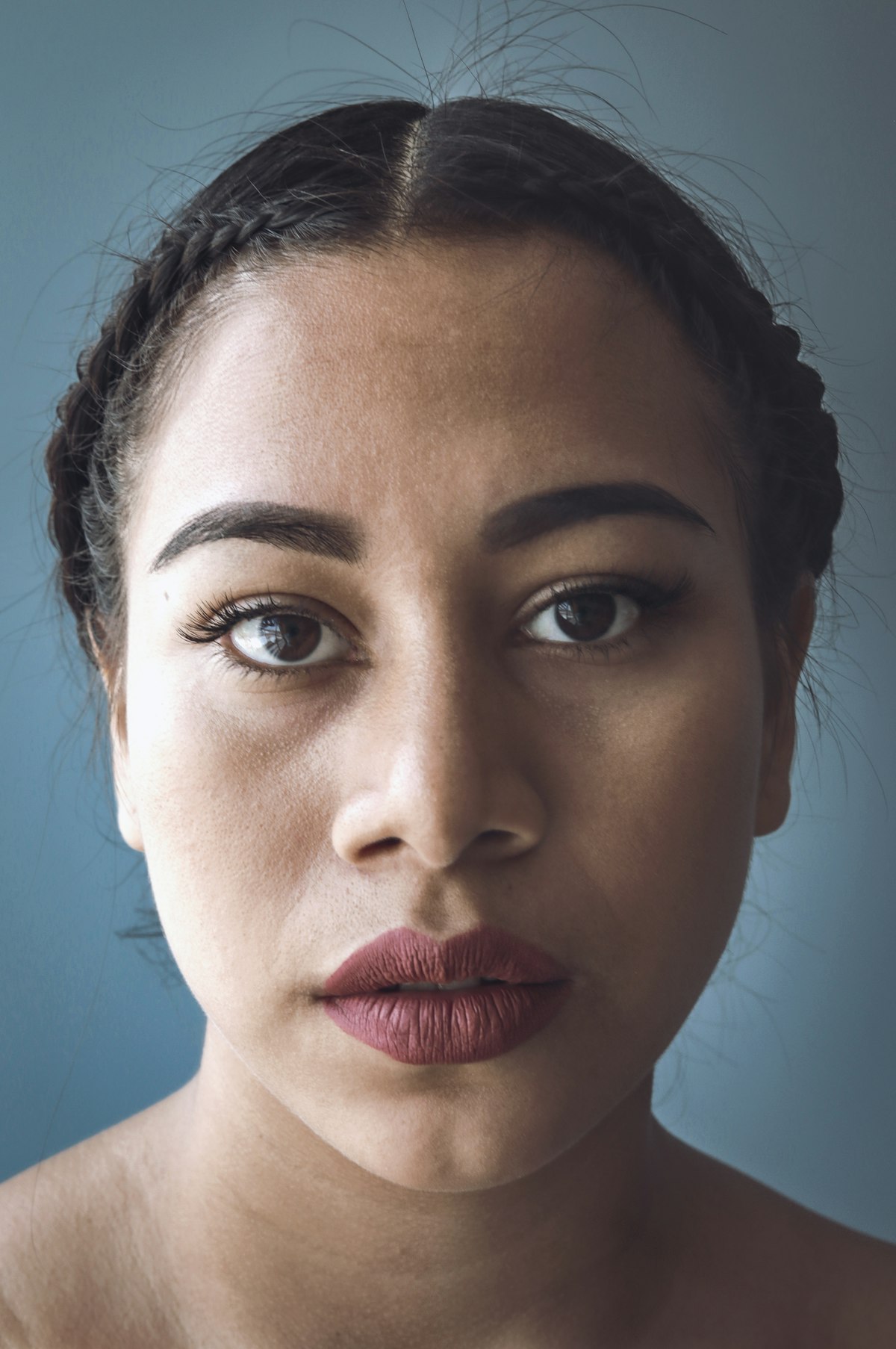
You took a great photo, but when you zoom in, every pore and texture line is visible. It’s natural skin, but it’s not the polished look you want for your profile picture or professional headshot.
Here’s the good news: you can smooth skin in photos without looking fake. The key is subtlety.
Why Skin Texture Shows Up in Photos
Camera sensors capture everything. Every freckle, every fine line, every bit of texture that your eye would normally soften when looking at someone in person.
Professional lighting helps, but most of us aren’t shooting in studio conditions. Natural light, phone cameras, and close-up shots all emphasize skin texture more than you’d expect.
This isn’t a flaw in you or your camera. It’s just how photography works.
The Right Way to Smooth Skin
Bad retouching looks like plastic. You’ve seen it: that airbrushed, doll-like effect where skin has zero texture and faces lose dimension.
Good skin smoothing reduces texture while keeping your skin looking like skin. You want to appear polished, not fake.
The technique is clarity reduction, not blur. We’re reducing the micro-contrast that makes every pore visible, while preserving the overall sharpness of your face. Your eyes stay crisp. Your features stay defined. Just the harsh texture gets dialed back.
One-Click Portrait Retouching
PhotoInput’s Auto Enhance analyzes your portrait and applies the right amount of smoothing automatically. It detects faces and adjusts clarity in skin areas while protecting details like eyes, hair, and clothing.
Everything happens in your browser. Your photo never uploads to a server. Complete privacy, instant results.
If you want more control, use the manual Clarity slider in the Adjust tab. Start at -10 to -20 for subtle smoothing. Go further if needed, but watch out for the plastic look around -40 or below.
What About Blemishes?
Skin smoothing reduces overall texture, which helps with minor blemishes. But if you have a specific spot you want to remove, you’ll need targeted retouching tools beyond what PhotoInput currently offers.
For general improvements, though, clarity reduction works remarkably well. It creates that “good skin day” effect without needing to manually edit individual spots.
Combine with Other Adjustments
Portraits rarely need just one fix. If your photo also has issues with color temperature or exposure, those will affect how your skin looks too.
A slight color cast can make skin look sickly or unnatural. Correcting white balance first, then smoothing skin, gives you better results than trying to fix texture alone.
Similarly, if your portrait is slightly blurry from camera shake, adding sharpness everywhere except skin areas creates professional-looking depth. PhotoInput’s Auto Enhance balances all of this automatically.
Mobile vs. Desktop Photos
Phone cameras apply some skin smoothing automatically, especially in portrait mode. But they often overdo it, or apply it inconsistently.
DSLR and mirrorless cameras capture raw detail with zero processing. That’s great for control, but it means skin texture shows up more prominently.
Either way, you can refine the results. Reduce phone smoothing that went too far, or add subtle retouching to unprocessed DSLR shots.
Avoid Common Mistakes
The biggest mistake is going too far. When skin loses all texture, faces look flat and lifeless. Keep some natural variation.
Another mistake is applying the same smoothing to everyone in a group photo. Older subjects often appreciate more retouching, while younger faces need less. PhotoInput’s automatic detection handles this, but if you’re doing manual edits, adjust per person.
Finally, don’t smooth at the expense of sharpness. Eyes should always be the sharpest part of a portrait. If smoothing makes eyes look soft, you’ve gone too far.
Professional Results in Seconds
Traditional retouching takes time. Load the photo into editing software, create masks for skin areas, adjust layers, preview, tweak, repeat.
PhotoInput does all of this instantly. Upload your portrait, click Fix Everything, and download your retouched photo. The entire process takes under 10 seconds.
And because everything runs locally in your browser, there’s no waiting for uploads, no privacy concerns, and no file size limits.
Privacy Matters in Portrait Retouching
Your face is personal. Many free online editors upload your photos to their servers for processing. You have no idea who has access or how long they keep your images.
PhotoInput never sends your photo anywhere. All processing happens on your device using your browser’s built-in graphics capabilities. Your portrait stays completely private.
This is especially important for professional headshots, dating profiles, or any photo where you care about who sees the original.
When to Use Skin Smoothing
Use it for:
- Professional headshots and LinkedIn profiles
- Dating app photos
- Social media profile pictures
- Event photos where you want to look polished
- Group photos where lighting emphasized texture
Skip it for:
- Journalistic or documentary photos
- Photos where authenticity matters more than polish
- Artistic portraits where texture adds character
The goal is to look like the best version of yourself, not like someone else.
Frequently Asked Questions
How do I smooth skin in a photo for free?
Upload your portrait to PhotoInput and click “Fix Everything.” The tool automatically detects faces and applies subtle skin smoothing while keeping your photo looking natural. All processing is free and happens privately in your browser.
What’s the difference between skin smoothing and blurring?
Blurring makes everything soft and out of focus. Skin smoothing reduces texture and micro-contrast in skin areas while keeping facial features sharp. Good retouching means crisp eyes and softened skin, not an overall blur effect.
Can I smooth skin without looking fake?
Yes, if you use subtle adjustments. Start with low clarity reduction (-10 to -20) and only increase if needed. The goal is to reduce harsh texture while maintaining natural skin variation. PhotoInput’s Auto Enhance applies retouching that looks natural, not plastic.
Does skin smoothing work on group photos?
Yes, PhotoInput detects all faces in group photos and applies appropriate smoothing to each person. The automatic analysis adjusts based on lighting and skin texture, so everyone gets balanced retouching without manual work.
Is online portrait retouching safe for privacy?
It depends on the tool. PhotoInput processes your photo entirely in your browser using local GPU acceleration. Your photo never uploads to any server, so your portrait stays completely private. Always check if a tool uploads images before using it.
Can I adjust how much skin smoothing is applied?
Yes. After using Auto Enhance, open the Adjust tab and manually adjust the Clarity slider. Negative values reduce texture for smoothing, while positive values add texture back. You have complete control over the final look.
Will skin smoothing fix blemishes?
Subtle skin smoothing reduces the appearance of minor blemishes by softening overall texture. For specific spot removal, you’d need dedicated retouching tools. But clarity reduction often improves skin tone enough that small imperfections become less noticeable.
What photo formats work for skin smoothing?
PhotoInput supports JPG, PNG, HEIC, and WebP formats. Most photos from phones, cameras, or downloads work without conversion. Upload any portrait and the tool handles the rest automatically.