Fix Dull & Washed-Out Colors Instantly
Bring life back to flat, desaturated photos with one click.
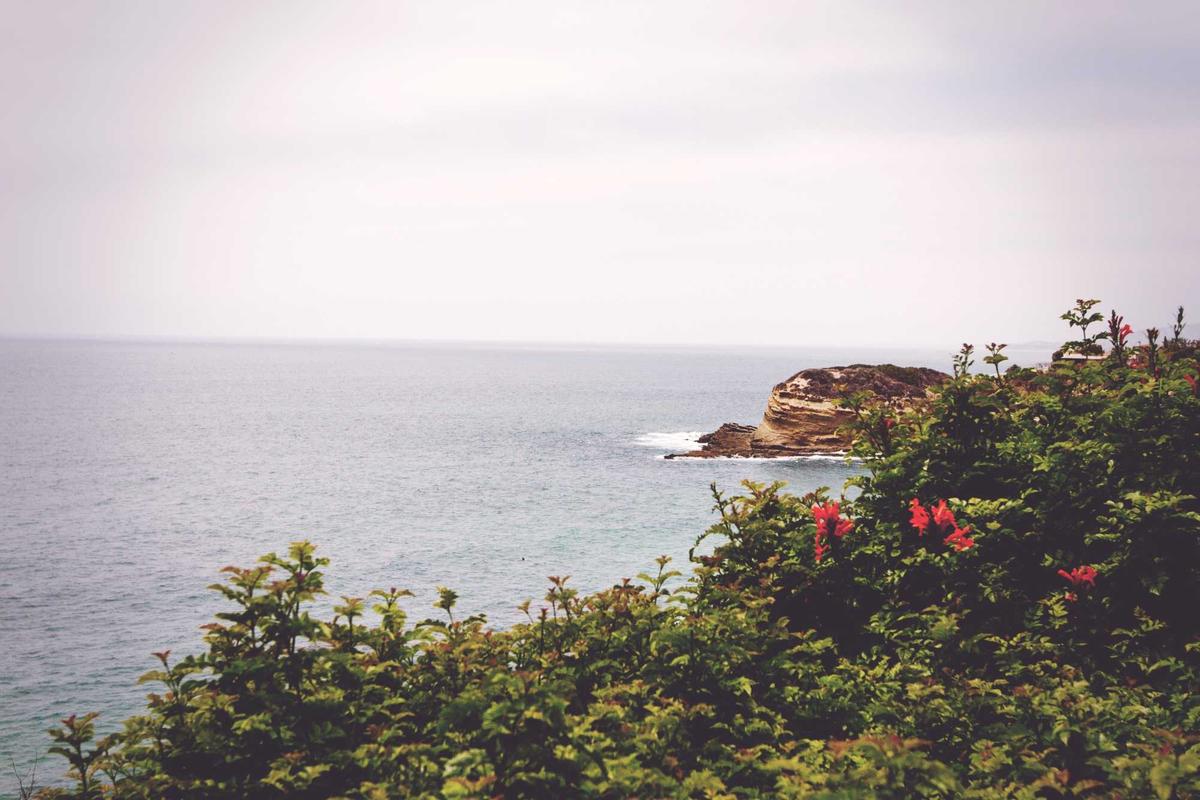
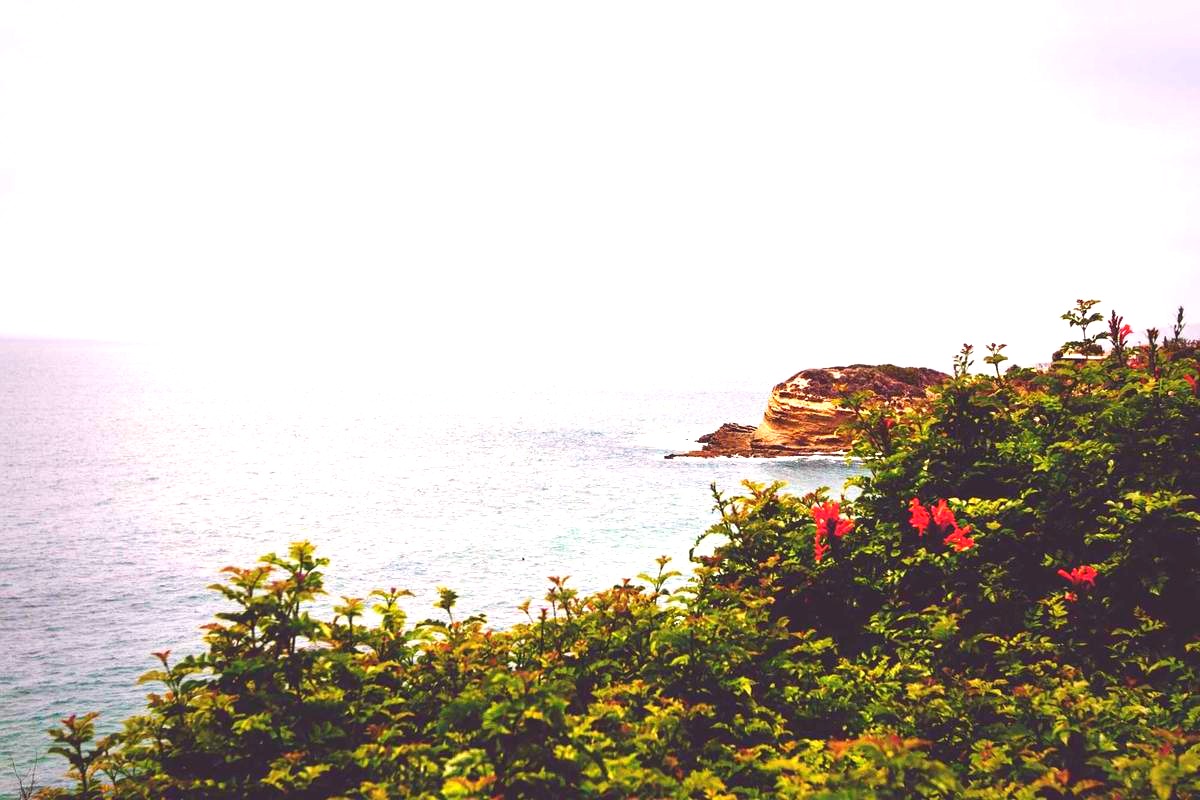
How it works
Drag & drop or browse. Stays on your device.
Instant quality analysis with specific issues.
One click corrects every detected issue.
Export at full resolution.
You took a photo in perfect lighting, the scene was vibrant, but when you look at it later, everything looks flat and washed out. The colors are there, technically, but they’re lifeless. You remember the sunset being more orange, the grass being greener, the whole scene having more punch.
This happens more often than you’d think. Phone cameras sometimes prioritize exposure over color intensity, leaving you with technically correct but visually boring photos. The good news is that bringing those colors back is one of the easiest fixes in photo editing.
Why Photos Look Desaturated
Digital cameras make compromises. When a scene has challenging lighting, your camera might pull back on saturation to avoid blowing out highlights or crushing shadows. It’s playing it safe, which results in muted, flat-looking colors.
Sometimes it’s atmospheric conditions. Haze, fog, or overcast skies act like a color-sucking filter between your camera and the subject. Other times it’s just how your phone processes the image, especially if you’re shooting in standard mode instead of a more vivid picture profile.
The technical term is low saturation. Saturation measures color intensity, from completely gray (zero saturation) to maximum vibrancy. Your dull photo is stuck somewhere in the middle, and it needs a boost.
How PhotoInput Fixes Dull Colors
Our tool analyzes your photo and applies intelligent color correction that brings back vibrancy without going overboard. When you upload your image, we automatically detect desaturation and increase color intensity across the board.
The key adjustment here is saturation, which we boost significantly to restore life to flat colors. But we don’t stop there. We also add a touch of contrast to make colors feel more dimensional, increase exposure slightly to brighten the overall scene, and apply sharpening to enhance detail. The combination makes colors feel richer and more present.
Everything happens in your browser using your device’s GPU. Your photo never touches our servers, never gets uploaded to the cloud, and never leaves your control. It’s completely private and instant.
Saturation vs. Vibrance: What’s the Difference?
If you’ve used photo editors before, you’ve probably seen both saturation and vibrance sliders. They sound similar, but they work differently.
Saturation boosts all colors equally. If you increase saturation by 30%, every single color in your image gets 30% more intense. This is powerful but can be risky because it affects skin tones, skies, and already-vibrant colors without discrimination.
Vibrance is smarter. It targets muted colors while protecting skin tones and colors that are already saturated. It’s a gentler, more selective approach that works great when you have people in your photos and don’t want them looking sunburned.
For truly dull photos where everything needs help, saturation is usually the right tool. For photos where some colors are fine and others need a boost, vibrance is your friend. PhotoInput uses both intelligently based on what your specific image needs.
Watch Out for Oversaturation
The biggest mistake people make when fixing dull colors is going too far. It’s tempting to crank saturation until colors are screaming, but that creates its own problems.
Oversaturated photos look fake. Grass turns radioactive green, skies turn electric blue, and people’s skin takes on an orange or red cast that makes them look sunburned. You lose subtle color variations and end up with a cartoon version of your photo.
The sweet spot is making colors look like you remember them, not like they’ve been dialed up to eleven. Your goal is vibrant but believable. If you look at your edited photo and think “wow, those colors are intense,” you’ve probably gone too far.
Common Scenarios for Dull Colors
Landscape photos suffer from desaturation more than anything else. Distance, atmospheric haze, and the sheer amount of light traveling through air all conspire to wash out colors. Mountains in the background, forest scenes, and beach photos often need a saturation boost.
Overcast day photography loses color intensity because diffused light doesn’t create the same color pop as direct sunlight. Your photos from cloudy days will almost always benefit from increased saturation and contrast.
Indoor photos with mixed lighting can look desaturated if your camera’s white balance struggles to pick the right temperature. This often creates a dual problem: both a color cast and overall muted colors. Fix the cast first, then boost saturation.
Vintage or scanned photos naturally lose color intensity over time. If you’re digitizing old prints or working with faded images, saturation adjustments can bring back the colors you remember from decades ago.
Related Color Problems
Dull colors often appear alongside other issues. If your photo has both muted colors and a yellow, blue, or green tint, you’re dealing with a color cast problem that should be corrected first. Boosting saturation on top of a color cast just makes the cast more intense.
Similarly, desaturated photos often have low contrast, which makes the whole image feel flat and lifeless. Increasing both saturation and contrast together creates a more dramatic transformation than either adjustment alone.
Why Choose PhotoInput?
Most online photo editors upload your images to their servers for processing. That creates privacy concerns and slows everything down while you wait for uploads and downloads.
PhotoInput runs entirely in your browser. When you drop in a photo with dull colors, your device does all the processing locally using advanced WebGL graphics. You get instant results with zero privacy compromise. Your photos stay on your device, always.
It’s also genuinely free. No watermarks, no account required, no credit card, no upgrade prompts. Just drag your photo in, get your enhanced version, and download it. That’s it.
How to Use PhotoInput for Dull Colors
Upload your washed-out photo and let our automatic analysis detect the desaturation. Click “Fix Everything” to apply our recommended adjustments, which include a significant saturation boost along with complementary changes to exposure, contrast, and sharpness.
If you want more control, open the editor and adjust individual sliders. The Saturation slider is your primary tool here, but also experiment with Vibrance, Contrast, and per-color HSL adjustments to target specific hues.
Compare before and after using the built-in comparison view. Make sure colors look vibrant but natural. If skin tones look too orange or red, pull back on saturation and try increasing vibrance instead.
When you’re happy with the result, download your enhanced photo at full resolution. No compression, no quality loss, just your photo with colors that finally match your memory of the scene.
Frequently Asked Questions
Why do my phone photos look washed out?
Phone cameras often prioritize balanced exposure over color intensity, especially in challenging lighting. They’d rather give you a slightly dull photo than risk blowing out highlights or crushing shadows. Additionally, most phones apply conservative processing to avoid oversaturation, which can result in muted colors.
Can I fix dull colors without making it look fake?
Absolutely. The key is moderation. Increase saturation until colors look vibrant and alive, but stop before they start looking unnatural. Pay special attention to skin tones and skies, which are dead giveaways when oversaturated. Aim for “this is how I remember it” rather than “this is more intense than reality.”
What’s the difference between saturation and vibrance?
Saturation increases the intensity of all colors equally throughout your image. Vibrance is more selective, boosting muted colors while protecting already-saturated colors and skin tones. For completely washed-out photos, saturation works better. For photos with mixed color intensity, vibrance is safer.
Will increasing saturation reduce image quality?
No. Saturation adjustments don’t add noise or reduce resolution. However, extreme saturation can reveal compression artifacts that weren’t visible before, and it can cause color banding in gradients like skies. Moderate adjustments are completely safe.
Can PhotoInput fix old faded photos?
Yes. Scanned prints and old digital photos that have lost color over time respond well to saturation increases. You may also need to adjust contrast and brightness to fully restore the image, but color recovery is definitely possible.
Is my photo really private on PhotoInput?
Completely. All processing happens in your browser using WebGL. Your photo never gets uploaded to any server. It stays on your device from the moment you select it until you download the enhanced version. We literally can’t see your photos even if we wanted to.
Can I adjust individual colors instead of all colors?
Yes. PhotoInput’s editor includes HSL (Hue, Saturation, Lightness) controls for individual color channels. You can boost just the greens in foliage, or just the blues in the sky, while leaving other colors untouched. This gives you precise control when you need it.
Why do my colors look different on other devices?
Different screens have different color profiles and calibration. What looks perfectly saturated on your phone might look oversaturated on your computer monitor or undersaturated on someone else’s phone. This is normal. Edit on the device where you’ll primarily view the photo, or aim for slightly conservative saturation that will look good across devices.