Fix Low Contrast & Flat Photos Instantly
Add depth and punch to flat, washed-out photos with one click.
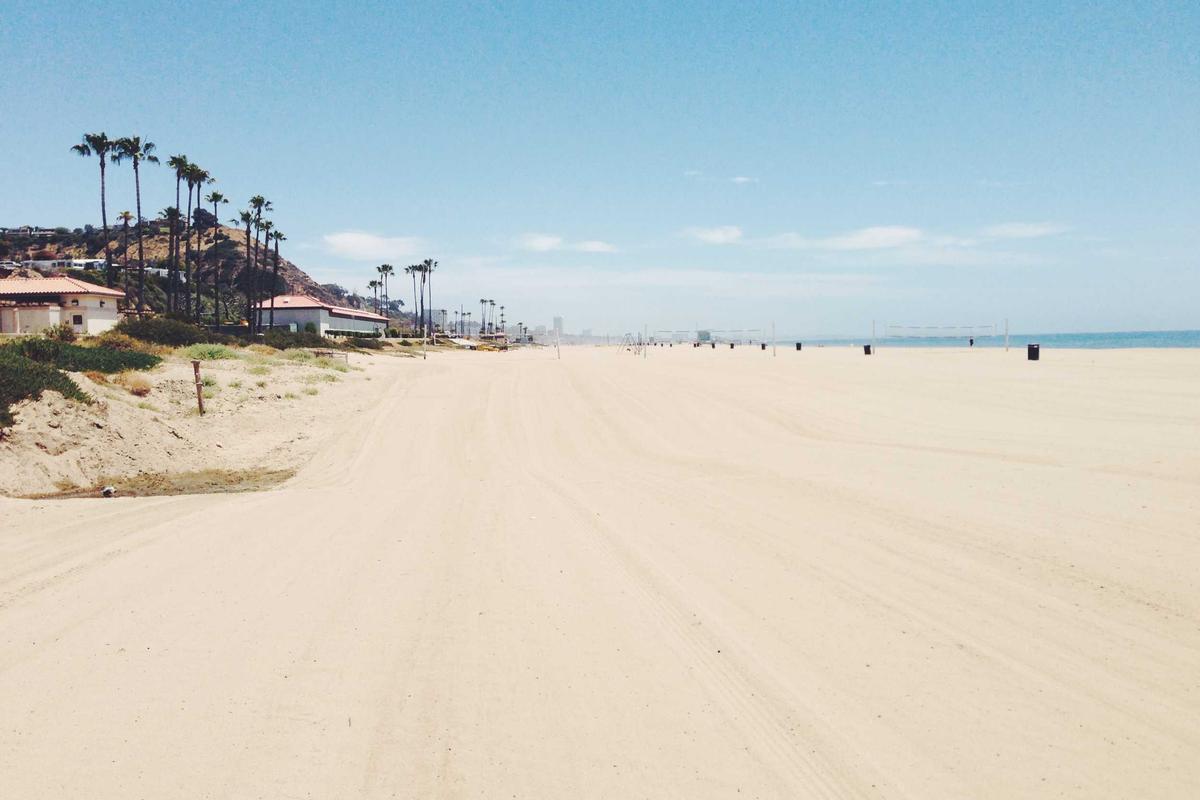
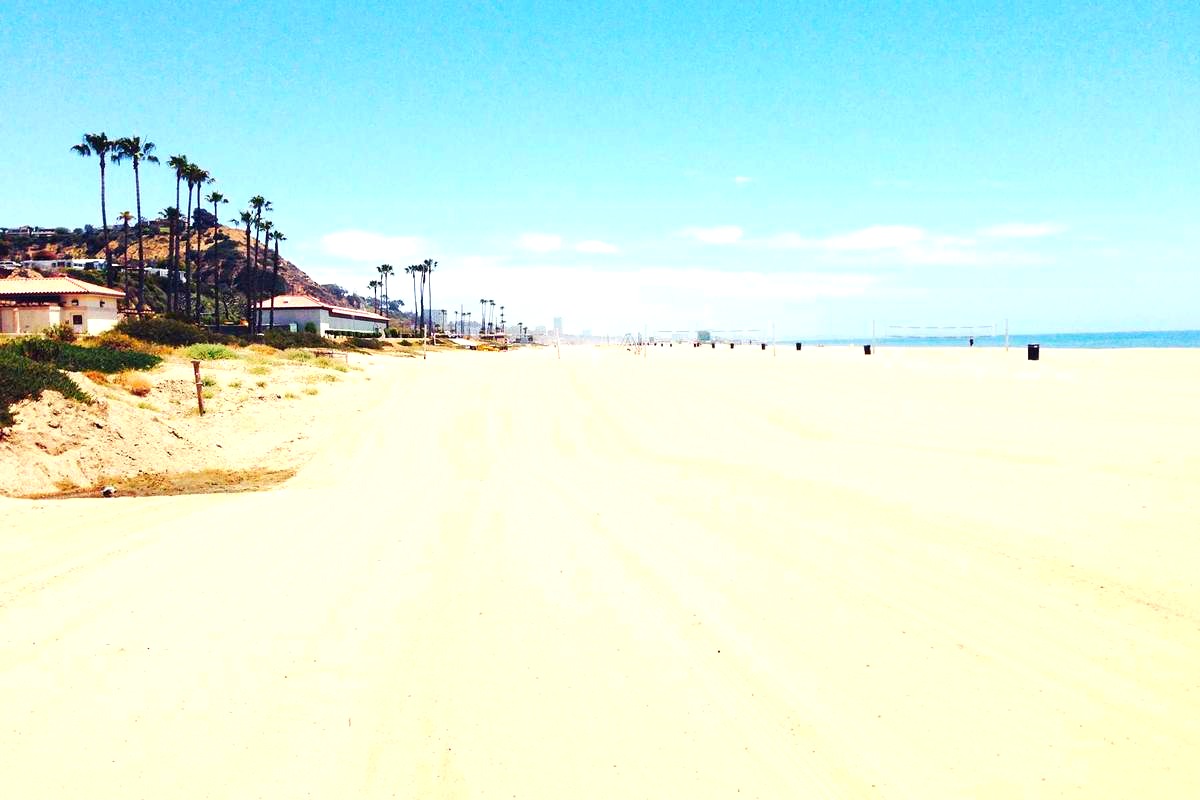
How it works
Drag & drop or browse. Stays on your device.
Instant quality analysis with specific issues.
One click corrects every detected issue.
Export at full resolution.
You took a photo that looked amazing in person, but when you check your phone, it looks completely flat. Washed out. Zero punch. Like someone drained all the life out of it.
That’s a low contrast problem, and it’s frustrating because the scene had depth when you were there. But your camera didn’t capture it.
What Makes a Photo Look Flat?
Contrast is the difference between the brightest and darkest parts of your image. When that difference is small, everything sits in the middle — no true blacks, no bright highlights. Just muddy grays.
Your photo lacks depth because there’s nothing for your eye to grab onto. No separation between the subject and background. No visual punch.
Think of it like turning down the volume on your favorite song until everything sounds the same. That’s what low contrast does to photos.
Why Your Photos Lose Contrast
Hazy weather is a common culprit. Fog, smog, or humidity scatter light and flatten everything out. Overcast days do the same thing — soft, diffused light means soft, diffused photos.
Indoor lighting can also kill contrast. Fluorescent lights, window light on a cloudy day, or evening light without strong shadows all produce flat results.
Sometimes your camera’s automatic settings play it safe and avoid deep shadows or bright highlights. The result? A perfectly exposed photo that looks boring.
How PhotoInput Fixes Flat Photos
PhotoInput analyzes your image and identifies when contrast is too low. Our histogram analysis detects when too many pixels are clustered in the midtones with no distribution across the full tonal range.
Then we apply intelligent contrast adjustments that restore depth without blowing out highlights or crushing shadows. We boost the separation between light and dark areas while preserving detail in both.
The difference is immediate. Subjects pop off the background. Textures become visible. Your photo finally has the depth you saw with your own eyes.
The One-Click Solution
Upload your flat photo and click “Fix Your Photo.” PhotoInput runs locally in your browser — your image never touches our servers. Complete privacy.
Our algorithm increases contrast strategically, adds a touch of clarity for definition, and fine-tunes exposure to ensure nothing gets lost. We also boost saturation slightly because dull colors often accompany low contrast.
In about two seconds, you’ll see your photo transform from flat and muddy to crisp and dimensional. Compare before and after with our side-by-side viewer.
If you want more control, open the editor and adjust contrast manually. Move the slider right to add more punch, or combine it with shadow and highlight adjustments for precise tonal control.
Understanding Your Histogram
Want to know if your photo lacks contrast before uploading? Look at the histogram on your camera or phone.
A flat photo shows a narrow hump of pixels in the middle with empty space on both ends. That means you’re missing deep blacks and bright whites — the recipe for a muddy image.
A contrasty photo spreads pixels across the full range from left (shadows) to right (highlights). That distribution creates visual interest and depth.
Related Issues You Might Also Have
Low contrast often comes with other problems. Hazy photos share the same washed-out look because atmospheric haze literally reduces contrast by scattering light.
Your colors might also look muted. When contrast is low, saturation appears reduced even if the color data is there. Fixing contrast often brings those colors back to life.
Sometimes what looks like a contrast issue is actually an exposure problem combined with poor tonal distribution. PhotoInput handles all of it in one pass.
Why This Matters for Your Photos
Contrast is what makes images feel three-dimensional on a two-dimensional screen. It’s the difference between a snapshot and a photograph that makes people stop scrolling.
Professional photographers obsess over tonal separation for a reason. It’s how you guide the viewer’s eye, create mood, and make subjects stand out.
You don’t need Photoshop or technical knowledge to fix this. Just drag your flat photo into PhotoInput and let the algorithm do the work.
Frequently Asked Questions
How do I fix a flat washed out photo?
Upload it to PhotoInput and click “Fix Your Photo.” The tool automatically detects low contrast and applies the right adjustments to add depth and punch. Your photo is processed locally — it never leaves your device.
What causes photos to have no contrast?
Hazy weather, overcast lighting, indoor fluorescent lights, and camera auto-exposure can all produce flat photos with poor tonal separation. When your camera avoids deep shadows and bright highlights, everything ends up in the muddy middle.
Can you add contrast after taking a photo?
Yes. Contrast adjustments work on any digital photo. PhotoInput analyzes your image’s histogram and redistributes tones to create proper separation between lights and darks without losing detail.
What’s the difference between contrast and clarity?
Contrast affects the overall difference between bright and dark tones across your entire image. Clarity targets midtone contrast specifically, enhancing edge definition and texture. PhotoInput applies both to make flat photos pop.
Will adding contrast damage my photo quality?
Not if done correctly. PhotoInput uses smart algorithms that boost contrast while preserving detail in shadows and highlights. Extreme manual adjustments can clip data, but our automatic tool stays within safe limits.
How much contrast should a good photo have?
There’s no single answer — it depends on your subject and mood. But most compelling photos use the full tonal range from near-black to near-white. Check your histogram: pixels should spread across the range, not cluster in the middle.